How to use an API key
General
The API key must be included in the service request header 'Authorization', as follows:
"Authorization: Api-Key YOUR_APIKEY_VALUE"
For example, when using curl to access the Built environment page:
curl -X GET -H "Authorization: Api-Key YOUR_APIKEY_VALUE" "https://locationfinland.fi/finland/api/be?f=json"
Using an API key in QGIS
-
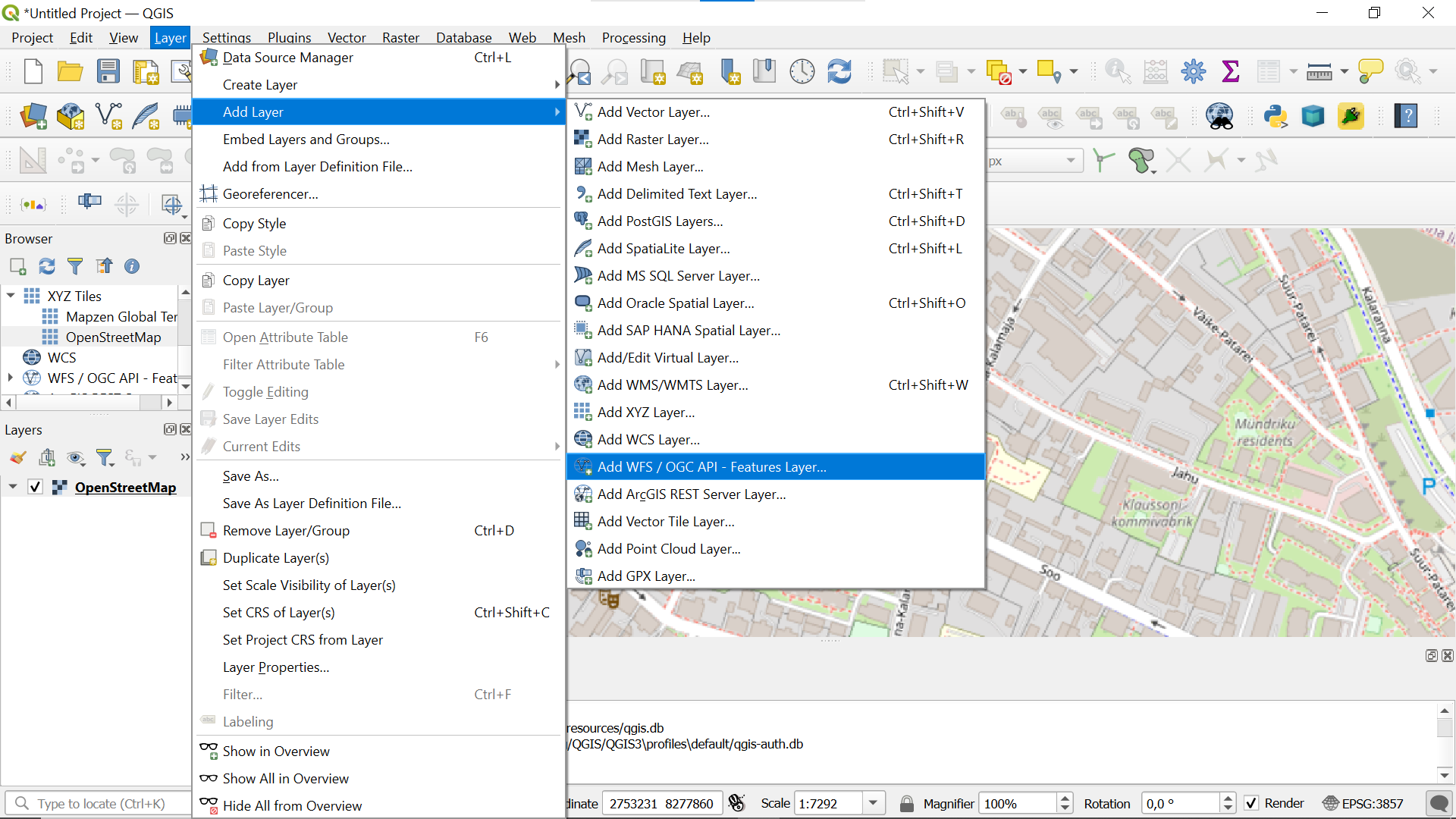
Select: Layer => Add Layer => Add WFS / OGC API - Features Layer.
-
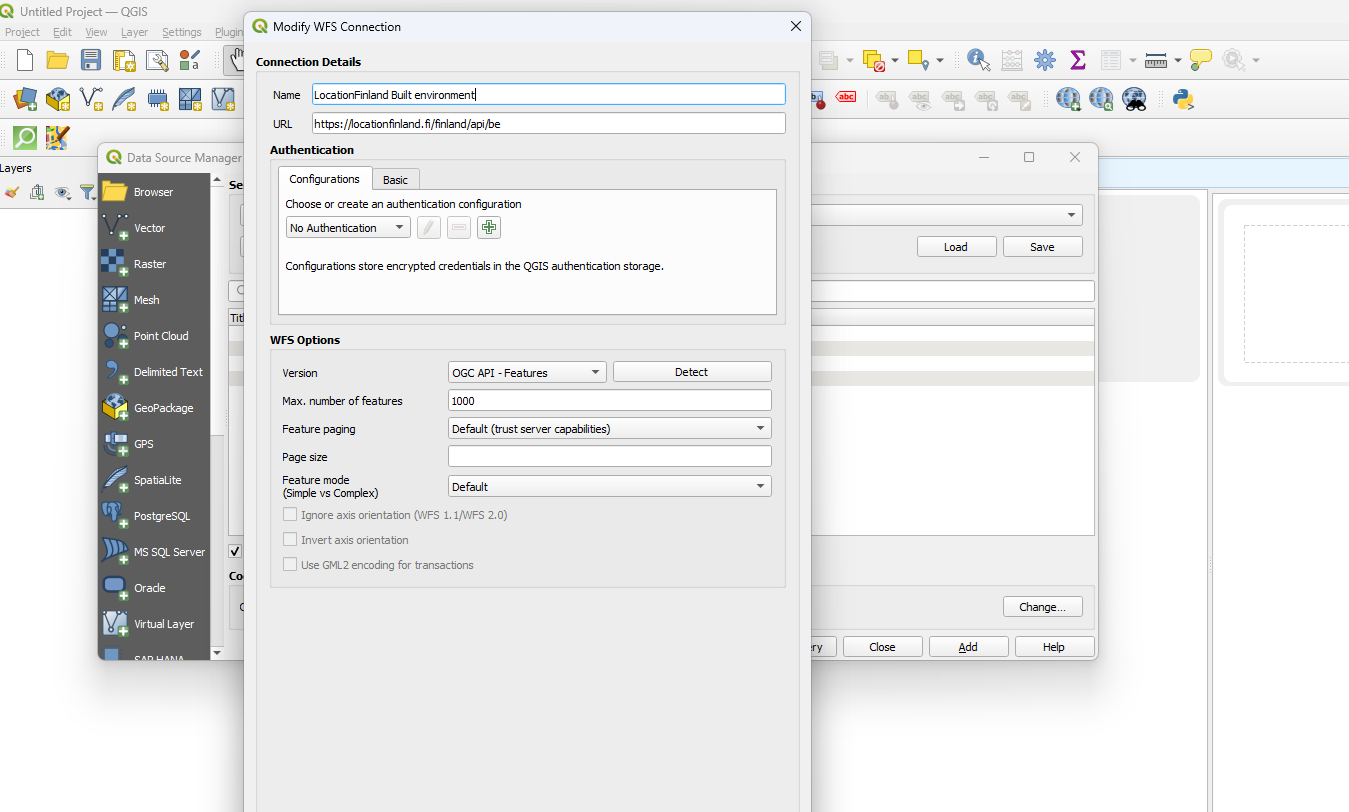
Add name for your layer, add the service URL and select 'OGC API - Features' from the WFS options. You can restrict the maximum number of returned features, for example, to value 1000. Select then the green 'plus' button from Configurations.
-
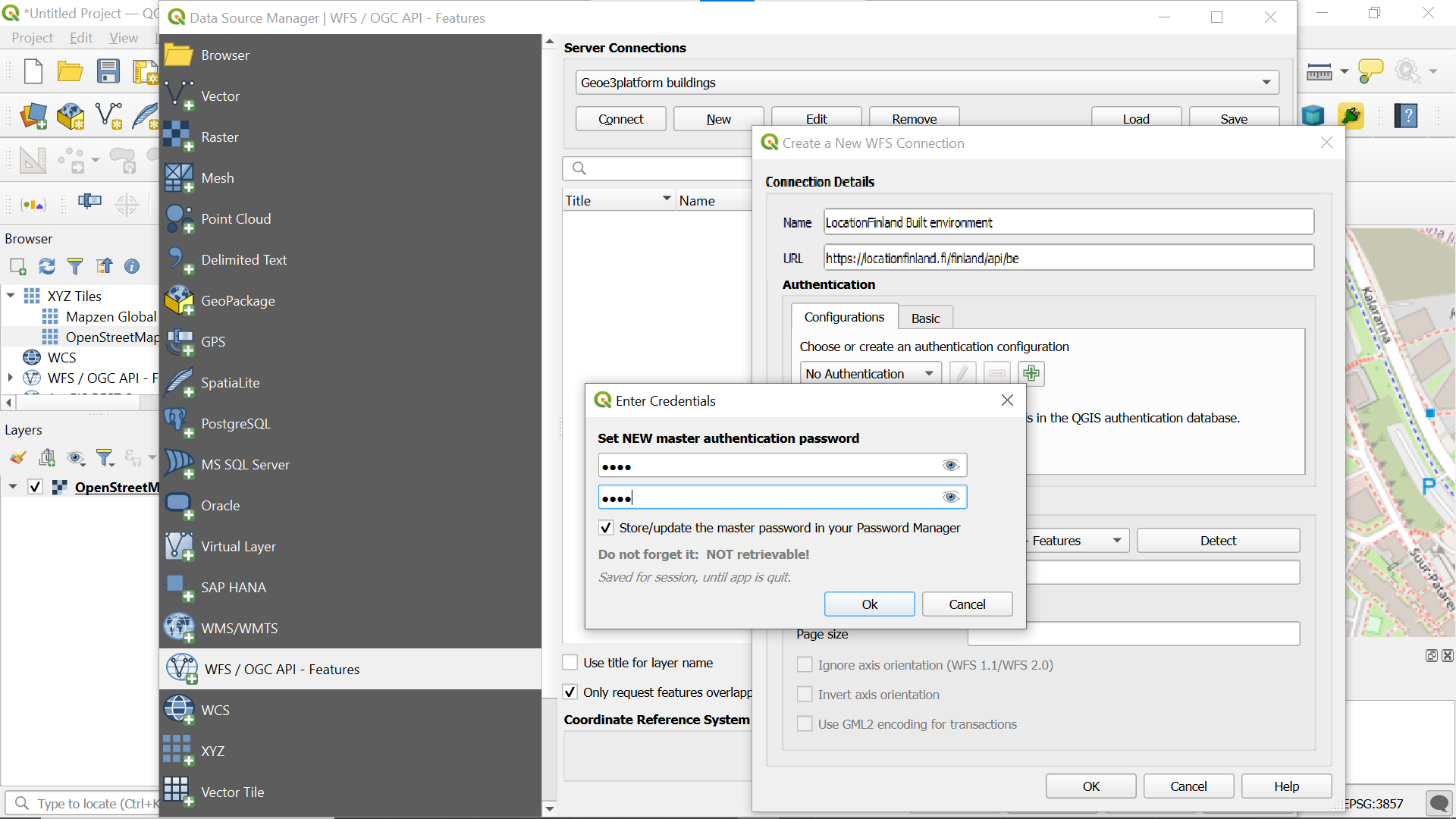
If you have not previously added anything to the QGIS Password Manager, the 'Enter Credentials' dialog will open. Create password (more info ). After this, a dialog opens in which you can select the method for authentication.
-
Give a name for your authentication configuration (for example, 'LocationEurope API Key') and select 'API Header' from the dropdown menu. Select the green 'plus' button and then insert to the 'Header' field: 'Authorization' and to the 'Header value' field: 'Api-Key YOUR_APIKEY_VALUE'. Save your configuration by selecting 'Save'.
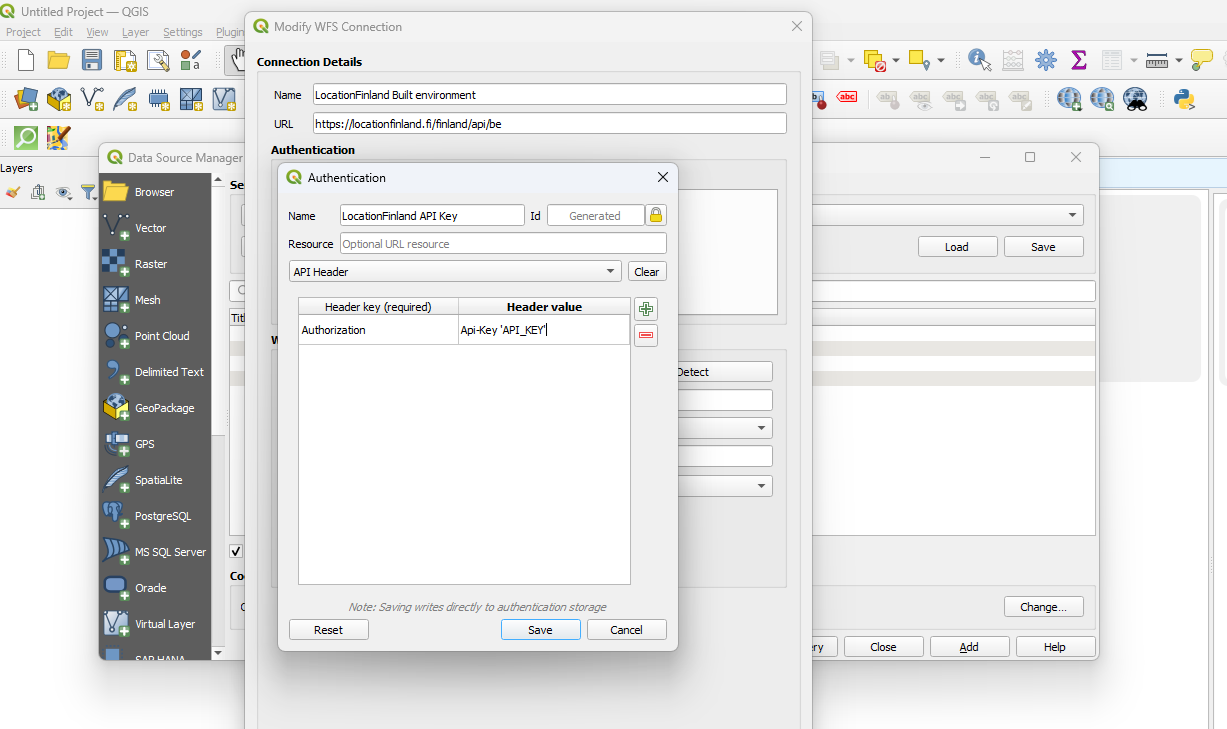
-
Now the configuration you created is shown in field 'Authentication'. Select 'OK'.
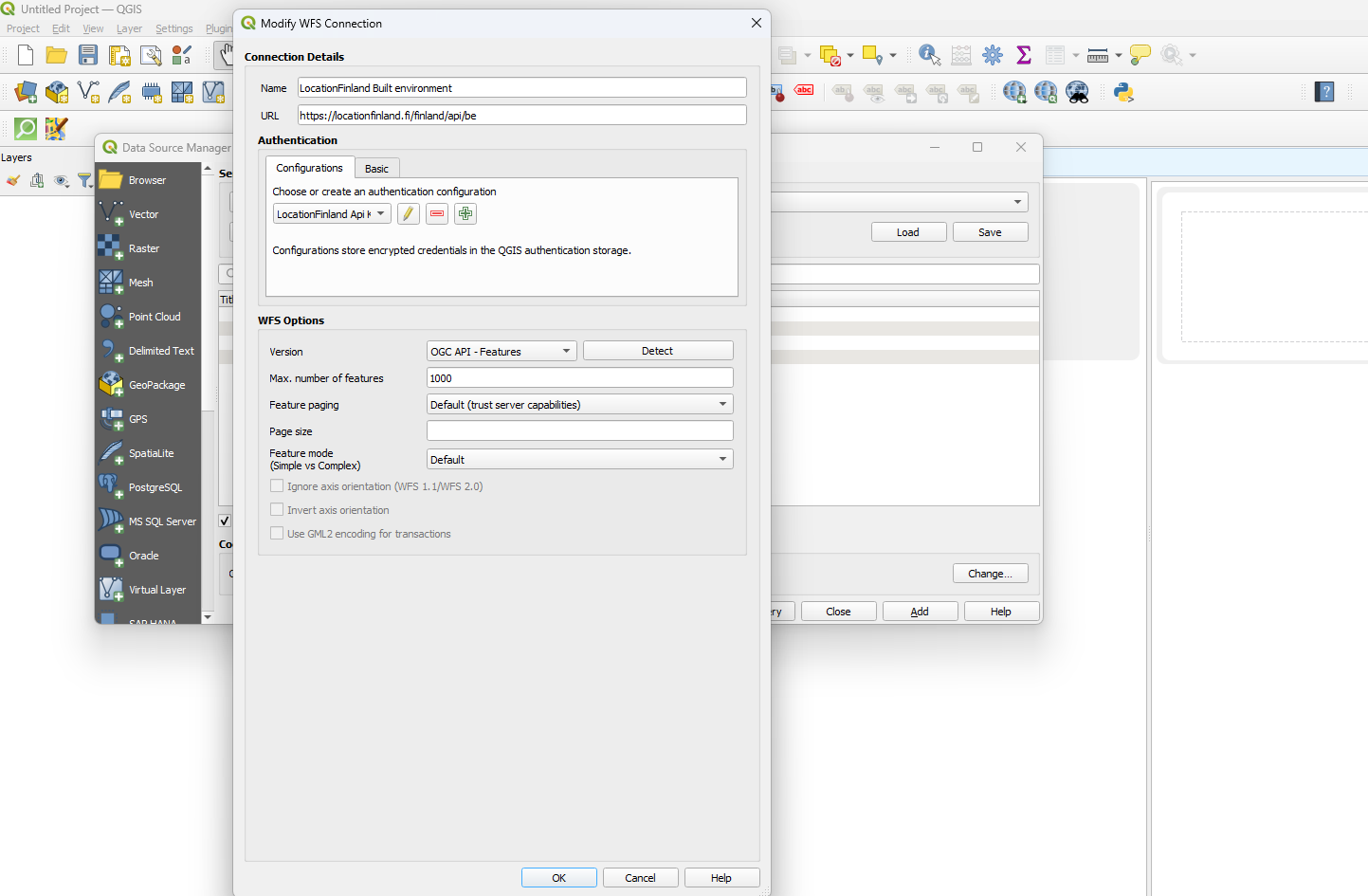
-
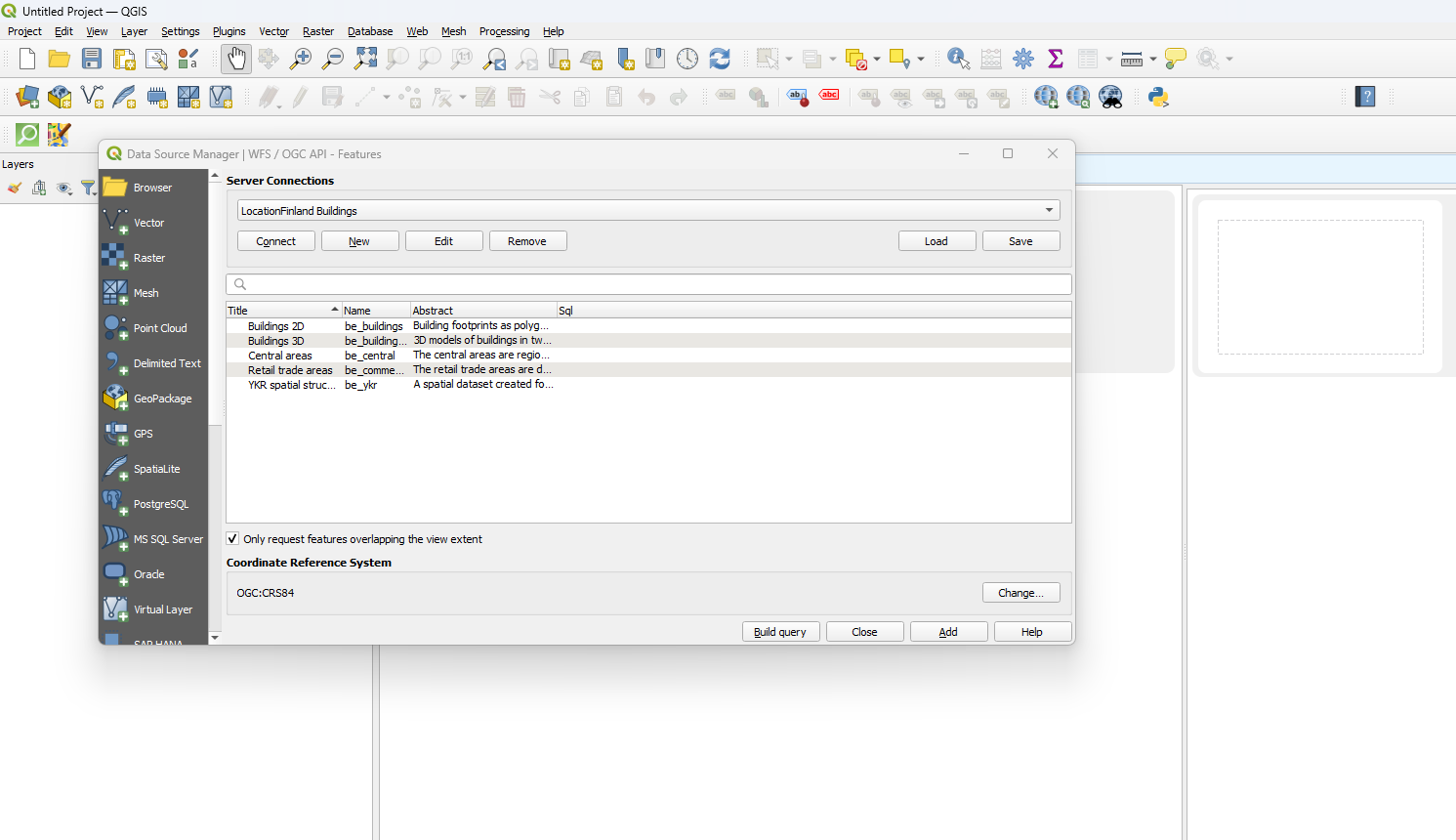
Now you can connect to the service by selecting 'Connect'. A list of the available data collections will appear. Note that 3D datasets can be curled but cannot be directly viewed in QGIS since they are not in geojson but in cityjson format. Choose the desired collection from the list and select 'Add' to add the selected collection as a new layer in QGIS.